> ## Documentation Index
> Fetch the complete documentation index at: https://number0-improve-contact.mintlify.site/llms.txt
> Use this file to discover all available pages before exploring further.
# Swift
> Build an iOS + macOS app on top of iroh via the Swift bindings.
| Platform | Architectures |
| -------- | -------------------- |
| iOS | device and simulator |
| macOS | arm64 |
* **API reference:** [Swift API docs](https://n0-computer.github.io/iroh-ffi/swift/documentation/irohlib/)
* **Example app:** [hello-iroh-ffi](https://github.com/n0-computer/hello-iroh-ffi/tree/main/swift), a SwiftUI demo that streams live positions between two devices
* **All languages:** [platform support matrix](/languages#platform-support)
The Swift bindings to iroh ship from [iroh-ffi](https://github.com/n0-computer/iroh-ffi) and are generated by [uniffi-rs](https://github.com/mozilla/uniffi-rs). The package distributes a prebuilt xcframework for iOS device, iOS simulator, and macOS, so adding iroh to your app is the same as adding any other Swift Package, with no Rust toolchain required.
This tutorial walks through creating a new Xcode project from scratch and wiring up a SwiftUI app that binds an iroh `Endpoint` and prints its endpoint id.
## Prerequisites
* macOS with [Xcode](https://developer.apple.com/xcode/) 16 or newer
* A free Apple Developer account if you want to run on a physical device
## 1. Create a new Xcode project
Open Xcode → **File → New → Project…** Choose the **Multiplatform → App** template if you want one target that runs on iOS and macOS, or the iOS-only **App** template if you only care about iPhone.
Fill in the product details. Use **SwiftUI** for the interface and **Swift** for the language.
## 2. Add iroh as a Swift Package
In Xcode, select your project in the navigator and go to **File → Add Package Dependencies…** Paste the iroh-ffi GitHub URL into the search bar:
```
https://github.com/n0-computer/iroh-ffi
```
Pick the latest released version and click **Add Package**.
When Xcode prompts you to pick a product, check **IrohLib** and add it to your app target.
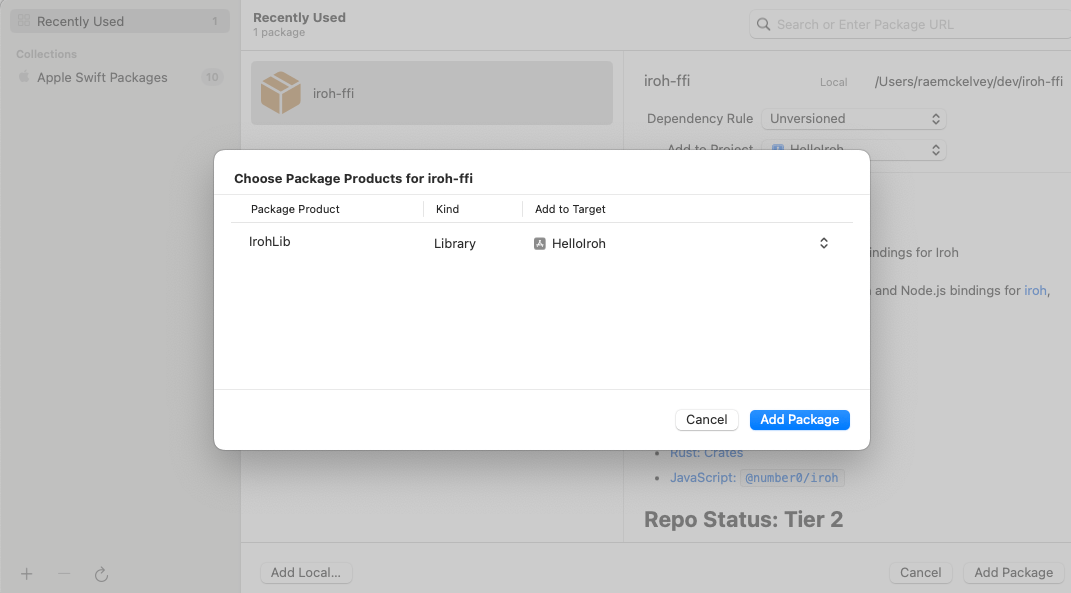 Xcode resolves the package, downloads the prebuilt xcframework, and links it into your target. You should see **IrohLib** appear under **Package Dependencies** in the navigator.
## 3. Link Network.framework on iOS
iroh's Rust core uses [Network.framework](https://developer.apple.com/documentation/network) for interface enumeration on iOS. Add a linker flag scoped to iOS:
Select the app target → **Build Settings** → search **Other Linker Flags** → add **`-framework Network`** to the **iphoneos** and **iphonesimulator** SDK rows.
Xcode resolves the package, downloads the prebuilt xcframework, and links it into your target. You should see **IrohLib** appear under **Package Dependencies** in the navigator.
## 3. Link Network.framework on iOS
iroh's Rust core uses [Network.framework](https://developer.apple.com/documentation/network) for interface enumeration on iOS. Add a linker flag scoped to iOS:
Select the app target → **Build Settings** → search **Other Linker Flags** → add **`-framework Network`** to the **iphoneos** and **iphonesimulator** SDK rows.
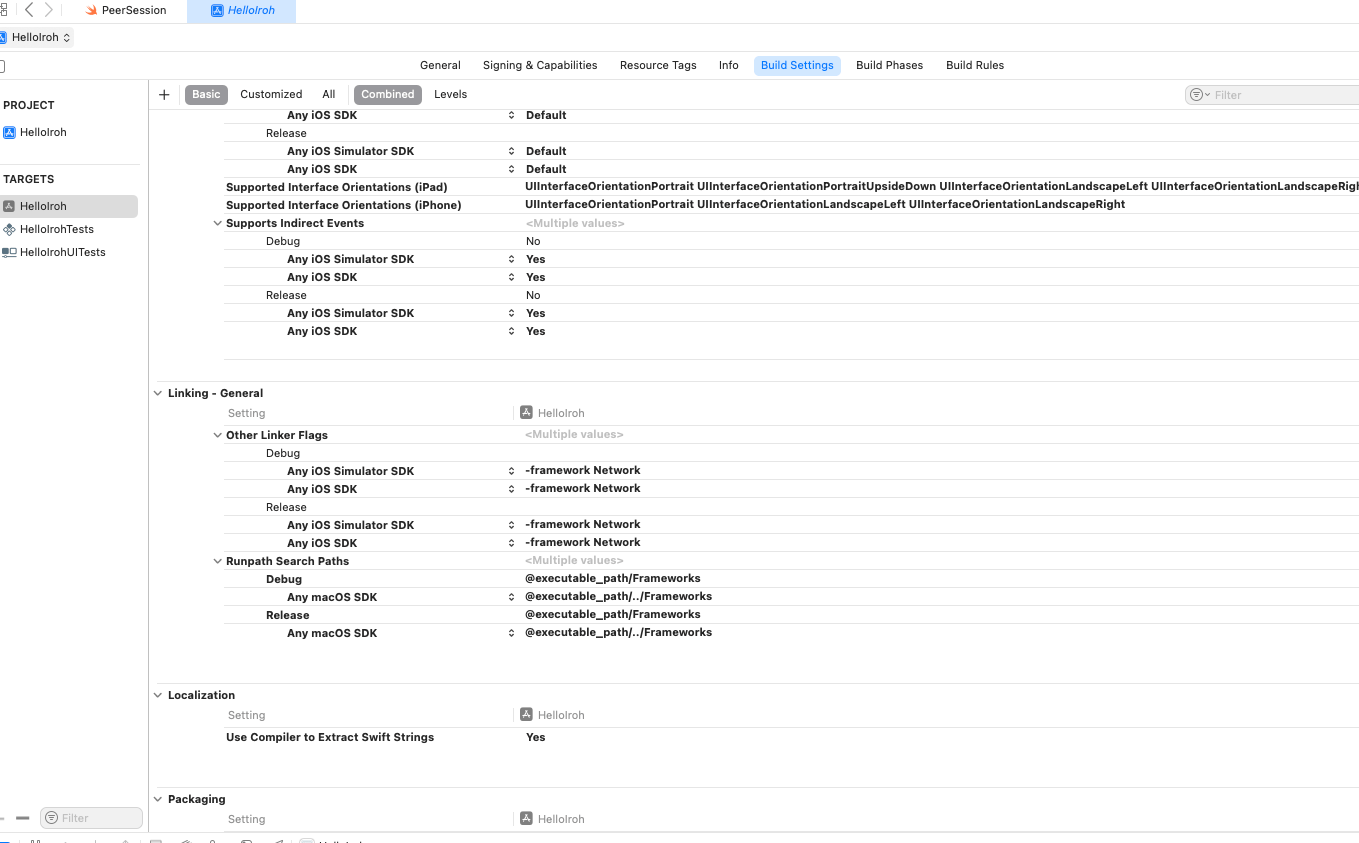 If you skip this step the iOS build fails with `Undefined symbols: _nw_interface_get_index`.
## 4. Grant network entitlements (macOS)
If you target macOS, the App Sandbox blocks both inbound and outbound networking by default. Open the target's **Signing & Capabilities** tab. Under **App Sandbox** check **Incoming Connections (Server)** and **Outgoing Connections (Client)**.
If you skip this step the iOS build fails with `Undefined symbols: _nw_interface_get_index`.
## 4. Grant network entitlements (macOS)
If you target macOS, the App Sandbox blocks both inbound and outbound networking by default. Open the target's **Signing & Capabilities** tab. Under **App Sandbox** check **Incoming Connections (Server)** and **Outgoing Connections (Client)**.
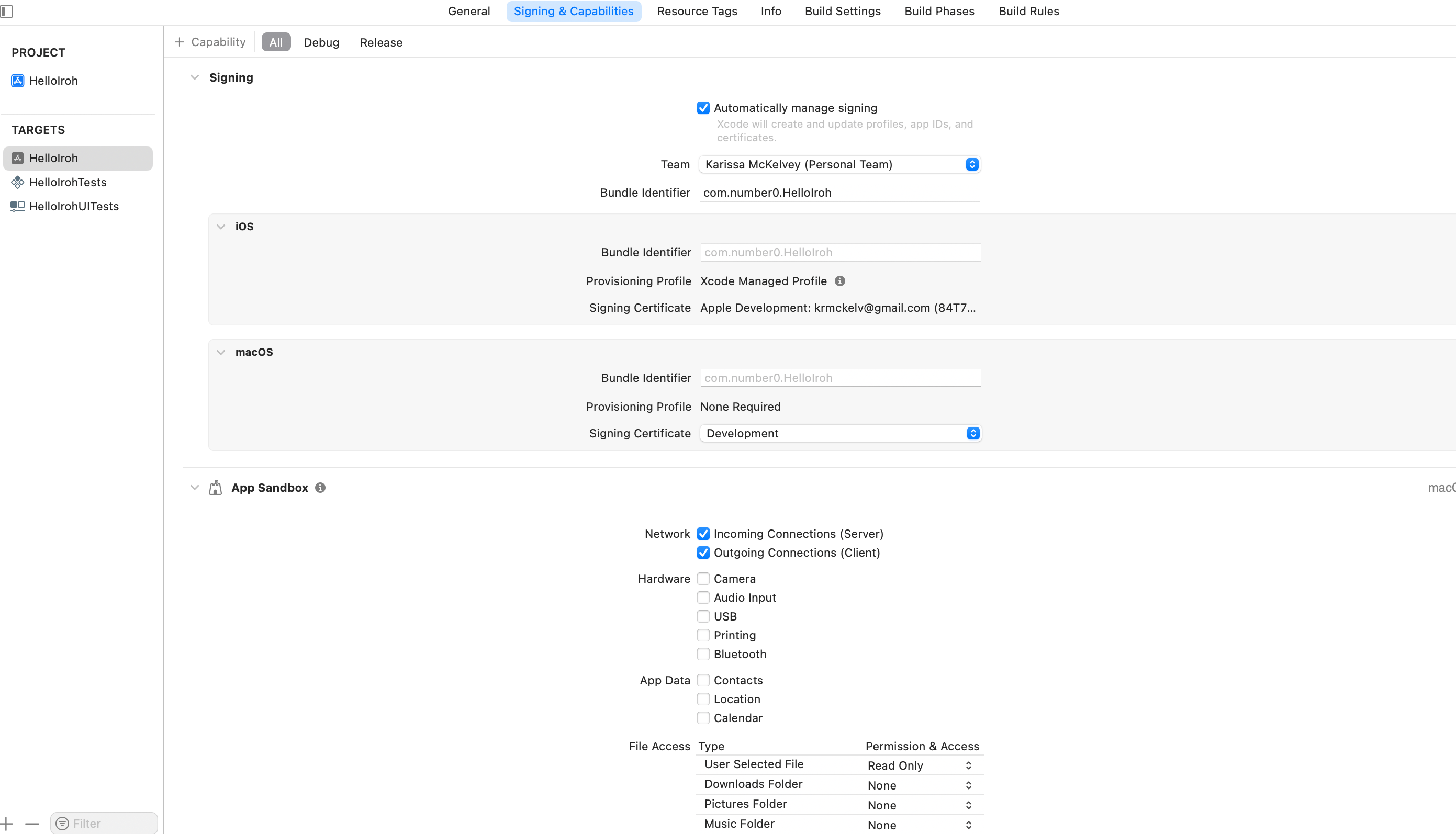 Your `.entitlements` file should now contain:
```xml theme={null}
com.apple.security.network.client
com.apple.security.network.server
```
## 5. Disable previews (Xcode 16 workaround)
Xcode 16's preview pipeline tries to link `SwiftUICore.framework` directly when a Swift Package is in the graph, which fails with *"product being built is not an allowed client of it"*. Until Apple ships a fix, turn previews off for the app target:
Build Settings → search **Enable Previews** → set both **Debug** and **Release** to **No**.
You'll lose Xcode's preview canvas, but the app builds and runs normally.
## 6. Hello, iroh
Replace `ContentView.swift` with a small SwiftUI view that binds an endpoint on appear and renders its id:
```swift theme={null}
import SwiftUI
import IrohLib
struct ContentView: View {
@State private var endpointId: String = "binding…"
@State private var endpoint: Endpoint?
var body: some View {
VStack(spacing: 12) {
Text("My endpoint id")
.font(.headline)
Text(endpointId)
.font(.system(.caption, design: .monospaced))
.textSelection(.enabled)
.multilineTextAlignment(.center)
.padding(.horizontal)
}
.padding()
.task { await bind() }
}
private func bind() async {
do {
let ep = try await Endpoint.bind(options: EndpointOptions(
preset: presetN0(),
alpns: [Data("hello-iroh/0".utf8)]
))
endpoint = ep
endpointId = ep.id().description
} catch {
endpointId = "bind failed: \(error)"
}
}
}
```
This binds an endpoint using the `n0` preset (public discovery + default relays), advertises a single ALPN, and surfaces the 64-character hex id once binding completes.
## 7. Build and run
Pick a destination and hit Run.
* **macOS**: choose **My Mac**. The app window opens and shows the endpoint id within a beat.
* **iOS Simulator**: choose any iPhone simulator destination.
* **iOS device**: select your device. You'll need to trust your developer certificate in **Settings → General → VPN & Device Management** the first time.
Two different installs print two different endpoint ids. That's expected, since each launch generates a fresh `SecretKey`. If you want a stable identity across launches, persist `endpoint.secretKey().toBytes()` (e.g. in `UserDefaults` for a demo, Keychain for production) and pass it back via `EndpointOptions(secretKey: ...)` on subsequent launches.
## Building against an unreleased iroh-ffi
If you need an unreleased fix or want to hack on the bindings themselves, you can build the xcframework locally and consume the package from a local checkout.
```bash theme={null}
git clone https://github.com/n0-computer/iroh-ffi
cd iroh-ffi
rustup target add aarch64-apple-ios aarch64-apple-ios-sim x86_64-apple-ios aarch64-apple-darwin
cargo install cargo-make
cargo make swift-xcframework
```
Then in Xcode, **File → Add Package Dependencies… → Add Local…** and pick the `iroh-ffi` directory. The rest of the steps above still apply.
## Next steps
Build a ping over iroh and learn how tickets, ALPNs, and routers fit together.
A full working SwiftUI demo: two devices stream live positions to each other at 60 Hz and show whether the connection is direct or relayed.
Full DocC reference for `IrohLib`: every type, method, and option generated from the bindings.
Learn what an endpoint actually is and how its identity, addresses, and discovery interact.
Understand the copy-pasteable strings that let two endpoints find each other.
## Troubleshooting
**`Undefined symbols: _nw_interface_get_index` on iOS.** You skipped step 3. Add `-framework Network` to **Other Linker Flags** for the iOS SDKs.
**`product being built is not an allowed client of SwiftUICore`.** You skipped step 5. Set **Enable Previews** to **No**.
**`No such module 'IrohLib'`.** The package didn't resolve. Pull down the package from **File → Packages → Reset Package Caches** and try the resolve again.
**`bind failed: NoNetwork` or hang on macOS.** Check **Signing & Capabilities**: both **Incoming** and **Outgoing** network sandbox boxes need to be checked.
**`The developer disk image could not be mounted on this device`.** Your device is running a newer iOS than your Xcode supports. Update Xcode (App Store for stable, [developer.apple.com](https://developer.apple.com/download/applications) for betas) so the matching Developer Disk Image is available, or fall back to the simulator while you wait.
Your `.entitlements` file should now contain:
```xml theme={null}
com.apple.security.network.client
com.apple.security.network.server
```
## 5. Disable previews (Xcode 16 workaround)
Xcode 16's preview pipeline tries to link `SwiftUICore.framework` directly when a Swift Package is in the graph, which fails with *"product being built is not an allowed client of it"*. Until Apple ships a fix, turn previews off for the app target:
Build Settings → search **Enable Previews** → set both **Debug** and **Release** to **No**.
You'll lose Xcode's preview canvas, but the app builds and runs normally.
## 6. Hello, iroh
Replace `ContentView.swift` with a small SwiftUI view that binds an endpoint on appear and renders its id:
```swift theme={null}
import SwiftUI
import IrohLib
struct ContentView: View {
@State private var endpointId: String = "binding…"
@State private var endpoint: Endpoint?
var body: some View {
VStack(spacing: 12) {
Text("My endpoint id")
.font(.headline)
Text(endpointId)
.font(.system(.caption, design: .monospaced))
.textSelection(.enabled)
.multilineTextAlignment(.center)
.padding(.horizontal)
}
.padding()
.task { await bind() }
}
private func bind() async {
do {
let ep = try await Endpoint.bind(options: EndpointOptions(
preset: presetN0(),
alpns: [Data("hello-iroh/0".utf8)]
))
endpoint = ep
endpointId = ep.id().description
} catch {
endpointId = "bind failed: \(error)"
}
}
}
```
This binds an endpoint using the `n0` preset (public discovery + default relays), advertises a single ALPN, and surfaces the 64-character hex id once binding completes.
## 7. Build and run
Pick a destination and hit Run.
* **macOS**: choose **My Mac**. The app window opens and shows the endpoint id within a beat.
* **iOS Simulator**: choose any iPhone simulator destination.
* **iOS device**: select your device. You'll need to trust your developer certificate in **Settings → General → VPN & Device Management** the first time.
Two different installs print two different endpoint ids. That's expected, since each launch generates a fresh `SecretKey`. If you want a stable identity across launches, persist `endpoint.secretKey().toBytes()` (e.g. in `UserDefaults` for a demo, Keychain for production) and pass it back via `EndpointOptions(secretKey: ...)` on subsequent launches.
## Building against an unreleased iroh-ffi
If you need an unreleased fix or want to hack on the bindings themselves, you can build the xcframework locally and consume the package from a local checkout.
```bash theme={null}
git clone https://github.com/n0-computer/iroh-ffi
cd iroh-ffi
rustup target add aarch64-apple-ios aarch64-apple-ios-sim x86_64-apple-ios aarch64-apple-darwin
cargo install cargo-make
cargo make swift-xcframework
```
Then in Xcode, **File → Add Package Dependencies… → Add Local…** and pick the `iroh-ffi` directory. The rest of the steps above still apply.
## Next steps
Build a ping over iroh and learn how tickets, ALPNs, and routers fit together.
A full working SwiftUI demo: two devices stream live positions to each other at 60 Hz and show whether the connection is direct or relayed.
Full DocC reference for `IrohLib`: every type, method, and option generated from the bindings.
Learn what an endpoint actually is and how its identity, addresses, and discovery interact.
Understand the copy-pasteable strings that let two endpoints find each other.
## Troubleshooting
**`Undefined symbols: _nw_interface_get_index` on iOS.** You skipped step 3. Add `-framework Network` to **Other Linker Flags** for the iOS SDKs.
**`product being built is not an allowed client of SwiftUICore`.** You skipped step 5. Set **Enable Previews** to **No**.
**`No such module 'IrohLib'`.** The package didn't resolve. Pull down the package from **File → Packages → Reset Package Caches** and try the resolve again.
**`bind failed: NoNetwork` or hang on macOS.** Check **Signing & Capabilities**: both **Incoming** and **Outgoing** network sandbox boxes need to be checked.
**`The developer disk image could not be mounted on this device`.** Your device is running a newer iOS than your Xcode supports. Update Xcode (App Store for stable, [developer.apple.com](https://developer.apple.com/download/applications) for betas) so the matching Developer Disk Image is available, or fall back to the simulator while you wait.